
TL;DR: Shopify is a hosted store builder that suits beginners who want to sell products without managing servers. As of October 2026, US pricing for Basic is $39 a month, or $29 billed yearly. To launch, pick a plan, connect a domain, choose a theme, and add products. Then set up payments, shipping, taxes, and policies. Place a test order before you go live.
Starting a Shopify store looks simple from the outside. You sign up, pick a theme, and add products. The hard part is the dozens of small choices in between. Which plan fits your budget? How should you group your products? What has to work before the first real order arrives?
This Shopify guide for beginners walks you through those choices in order. You will learn what Shopify really costs and how to set up a store step by step. You will also see which apps to add first and how to test checkout before launch. Finally, we cover the search basics that help a new store get found on Google.
We reviewed Shopify’s official pricing page and its Help Center documentation to build this guide. Every price and setting below links to its source. If you have not picked a platform yet, first compare the best ecommerce platforms side by side. Come back here once Shopify makes your shortlist.
Shopify Launch Checklist at a Glance
A Shopify launch comes down to eight jobs done in order. Plan what you sell, price the full cost, and set up your brand and domain. Next, pick a theme and build your catalog. Then configure payments and shipping, add only the apps you need, and place a test order. The table below shows when each job is done.
| Step | What you do | Done when |
|---|---|---|
| 1. Plan the store | Products, customers, markets, fulfillment | You know what launch day must support |
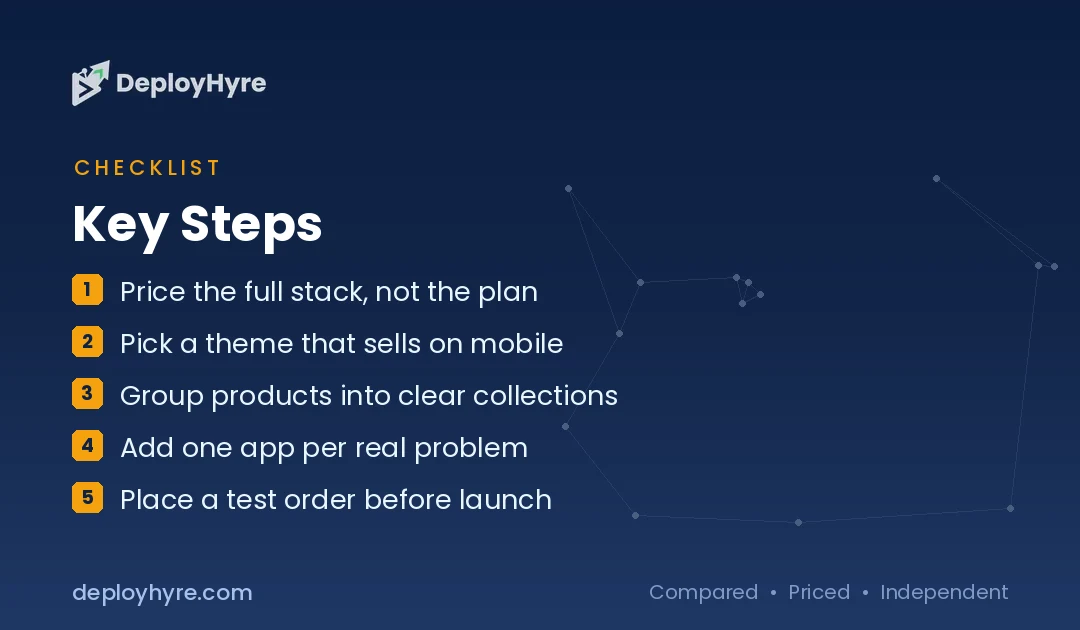
| 2. Price the full stack | Plan, card fees, apps, theme, shipping | You have a monthly and per-order estimate |
| 3. Set up the brand | Domain, logo, contact details, policies | Store details match everywhere |
| 4. Choose a theme | Mobile layout, menus, product pages | A shopper can buy easily on a phone |
| 5. Build the catalog | Titles, photos, variants, collections | Products are accurate and easy to browse |
| 6. Configure operations | Payments, shipping, taxes, returns | A real order can flow from cart to delivery |
| 7. Add apps carefully | One app per clear problem | Each app has a purpose and a cost check |
| 8. Test and launch | Test order, preview, remove password | A test order works on mobile and desktop |
Is Shopify Right for Your Business?
Shopify is a good fit when selling products is the main job of your website. It bundles hosting, checkout, product tools, themes, and an app store into one monthly plan. It fits less well if you want full code control or run a content-first site. It also costs more if you use a payment provider that triggers extra Shopify fees.
Shopify is hosted software. That means Shopify runs the servers, security, and checkout for you. Its official pricing page says every plan includes hosting, unlimited bandwidth, and a free SSL certificate for your domains. You do not need to buy separate web hosting.
That trade suits most first-time sellers. You give up some control, and you gain time to focus on products and customers.
Shopify may not be your best pick in three cases:
- You mostly publish content. If you sell only a few items, a design-first builder may cost less. Our Squarespace vs Shopify comparison covers that choice.
- You want to own the code. A self-hosted store gives you more control and more upkeep. See WooCommerce vs Shopify for the trade-offs.
- You need deep built-in B2B tools. Some rivals include more features in the core plan. Read Shopify vs BigCommerce before you commit.
Are fees or control deal breakers for you? Our list of Shopify alternatives ranks seven other platforms.
How Much Does Shopify Cost in 2026?
As of October 2026, Shopify’s US plans cost $39, $105, or $399 a month with monthly billing. Yearly billing lowers them to $29, $89, and $359 a month. Plus starts at $2,300 a month. On top of the plan, you pay card processing and any third-party payment fees. Apps and paid themes cost extra too.
| Plan (US) | Billed monthly | Billed yearly (per month) | Online card rate | Third-party payment fee |
|---|---|---|---|---|
| Basic | $39 | $29 | 2.9% + 30¢ | 2% |
| Grow | $105 | $89 | 2.7% + 30¢ | 1% |
| Advanced | $399 | $359 | 2.5% + 30¢ | 0.6% |
| Plus | From $2,300 | Not listed | 2.25% + 30¢ | 0.2% |
Source: Shopify pricing for US stores, in USD, checked October 24, 2026. Card rates are standard online rates with Shopify Payments. Prices and plan names change, so confirm them on the day you sign up.
What the trial includes
Shopify offers a free 3-day trial with no credit card required. After that, Shopify says most plans cost $1 a month for the first three months. Standard monthly pricing applies after that. Shopify also lists no setup fees on any plan.
The fees beginners often miss
The plan price is only part of the bill. Watch these costs when you build your budget:
- Card processing on every online sale. The rate drops as you move up plans.
- Third-party transaction fees when you use a provider other than Shopify Payments.
- Paid apps, which usually bill every month.
- A paid theme, if the free themes do not fit your catalog.
- A custom domain, unless you keep the free myshopify.com address.
Shopify Payments is only available in certain countries. Sellers outside the US should check which payment options and rates apply to them. Shopify notes that features and pricing can differ depending on where your business is based.
Next, run your expected sales through each plan. For example, on yearly billing Grow costs $60 more per month than Basic. Its online card rate is 0.2 percentage points lower. That gap only pays for itself above about $30,000 in monthly online card sales. Below that, Basic usually wins on fees alone.
How Do You Set Up a Shopify Store Step by Step?
You can set up a Shopify store in six steps. Create your account and plan the store. Add business details and connect a domain. Pick a theme and build your menus. Add products and group them into collections. Configure payments, shipping, and taxes. Finally, publish clear policies and contact details so shoppers trust a store they have never used.
Step 1: Create your account and plan the store
Sign up on Shopify’s website and answer the setup questions. Before you add anything, write down what the store must handle on day one. List your product types, variants, catalog size, target countries, and shipping method. A one-product store needs very different menus from a store with 500 items.
Step 2: Add business details and connect a domain
Add your store address in the business details settings. Shopify requires it before you can launch. Every store also gets a free myshopify.com address. You can buy a new domain through Shopify or connect one you already own. Pick a name that is short, easy to spell, and matches your brand.
Moving an existing store? List your old product and collection URLs first. You will need them to set up redirects so old links keep working. Shopify lets you add redirects from the Menus area of the admin. You can also import them in bulk from a CSV file.
Step 3: Choose a theme that helps people buy
Start with a free theme from the Shopify Theme Store. Preview it with your real products, not just the demo content. Check product pages on a phone first, since layout problems show up there. Favor readable text, clear menus, and fast images over heavy animation. Every extra widget adds code that each page must load.
Step 4: Add products and build collections
Give every product a clear title, an original description, accurate variants, prices, and good photos. Explain who the product is for and what makes it different. Do not paste the supplier’s description word for word. Many other stores already use that same text.
Then group products into collections that match how shoppers think. Common groupings are product type, use case, audience, or season. Avoid near-duplicate collections that differ by only one small filter. Two collections with the same products confuse shoppers and search engines.
Step 5: Set up payments, shipping, and taxes
Turn on Shopify Payments if it is available in your country, or connect another provider. Remember that other providers can add a third-party fee. Next, set shipping zones, rates, and delivery estimates. Then review tax settings for every place you sell. Tax rules vary by location, so ask a qualified tax adviser when you are unsure.
Step 6: Publish policies and trust pages
Add a refund policy, privacy policy, terms of service, and shipping policy. Create a contact page with a real email address. Link these pages in your footer. Shoppers often check them before they buy from a store they do not know yet.
An About page helps as well. Tell shoppers who runs the store, where you ship from, and why you started. Real details build more trust than generic brand slogans.
Best First Apps for a New Shopify Store
The best first apps solve a problem you already have. Start with Shopify’s built-in tools, then add one app for each clear bottleneck. Common early needs are email marketing, product reviews, and customer support. Before you install anything, check the price and the store data the app can access. Also learn how to remove it cleanly.
The Shopify App Store is large. That is both a strength and a trap. Each app can add a monthly fee, extra scripts, and access to your store data. Ten apps on day one usually means ten things to maintain and pay for.
Use this simple filter before you install an app:
- Name the exact problem, such as abandoned carts or slow support replies.
- Check whether Shopify already handles it with a built-in feature.
- Compare two or three apps on price, reviews, and permissions.
- Install one app, then measure the result for a few weeks.
- Remove apps you stop using, and check your theme for leftover code.
For AI-powered options, see our guide to the AI tools for Shopify. It sorts apps by job, from product copy to inventory forecasting. For tools that work across many platforms, browse the best AI tools for ecommerce.
How Do You Make a New Shopify Store Search-Friendly?
Keep a simple structure that runs from the homepage to collections to products. Write unique titles and descriptions for your key pages, and add clear image alt text. After launch, submit your sitemap in Google Search Console. Shopify handles some technical basics for you. Useful product content and clear menus are still your job.
Shopify’s SEO overview says the platform adds canonical tags to pages automatically. It also generates your sitemap.xml and robots.txt files. Shopify says its themes include product schema markup too. Those defaults help, but they cannot write good product pages for you.
Timing matters as well. During the free trial, your store sits in private mode behind a password. Shopify’s SEO FAQ page also says search engines do not index trial stores. So expect search visibility to start only after you pick a paid plan and launch.
Once you are live, follow Shopify’s guide to finding and submitting your sitemap. You verify your domain in Google Search Console, then submit sitemap.xml. Google does not promise how long crawling will take.
For the full list of on-page and technical tasks, use our Shopify SEO checklist. It covers product pages, collections, images, redirects, structured data, and stores that sell in several countries.
How Should You Test a Shopify Store Before Launch?
Place at least one test order before launch. Use Shopify Payments test mode or Shopify’s test payment gateway. Walk through product pages, cart, checkout, confirmation emails, and shipping options on both a phone and a desktop. When everything works, turn test mode off before you accept real payments from customers.
Shopify’s guide to preparing your store for launch explains what a test order checks. It confirms your checkout, order processing, inventory, shipping, and taxes. Charges do not apply to test orders. Shopify also suggests a new test order whenever you change payment settings.
Not using Shopify Payments? Shopify’s help page on placing a test order shows how to use its test payment gateway instead.
Run through this pre-launch list:
- Buy a product with variants and confirm the right option shows in the order.
- Apply a discount code and check the final total.
- Choose each shipping option and compare the rates you see.
- Open every footer link, including policies and contact.
- Read the order confirmation email as a customer would.
- Ask a friend who did not build the store to find and buy a product.
Shopify requires three things before you can launch. You need a paid plan and a store address in your business details. You also need a payment method with test mode off. Once those are done, you can remove the password and open the store to the public.
How Do You Grow a Shopify Store After Launch?
Grow a Shopify store by improving what real shoppers already do. Track which pages bring visits, where people leave, what they search for, and which products come back as returns. Fix the biggest leak first. Add content that answers buyer questions, and review app costs every month so each tool earns its place.
Set a regular review, weekly or monthly. Look at the same small set of numbers each time:
- Sessions and orders by traffic source.
- Conversion rate on your top product pages.
- Search queries from Google Search Console.
- Return reasons and common support questions.
- Total monthly spend on apps and themes.
Change one thing at a time. That way you can tell which change actually helped.
Content can help too. Write short buying guides that answer the questions shoppers ask before they buy. A guide on choosing the right size, for example, can link to the matching collection. That helps shoppers decide and gives search engines more context about your products.
Finally, build your email list from day one. Search and social traffic can change quickly. An email list is an audience you control. It is often the cheapest way to bring past buyers back.
Common Shopify setup mistakes to avoid
- Choosing a plan before estimating card and app fees.
- Installing many apps before you find a real bottleneck.
- Launching with thin product pages or copied supplier text.
- Hiding shipping, returns, or contact details.
- Changing URLs without adding redirects.
- Skipping mobile checks on product pages and checkout.
- Assuming a theme or app makes every page ready for search.
The Bottom Line
Shopify is a strong starting point for beginners who want to sell products without running servers. Success comes from the setup, not the sign-up. Price the full cost, build accurate product pages, and configure payments and shipping. Test checkout before launch. Then improve the store step by step using real customer data.
How we reviewed Shopify for this guide
We reviewed Shopify’s US pricing page and its Help Center articles on launch, test orders, SEO, and sitemaps. We then compared those details with our existing platform comparisons. We did not run a live store for this guide. Every price reflects US pricing checked in October 2026, and each claim links to its source.
Your next step is simple. Start the trial, follow the six setup steps, and place a test order before you announce your launch.
Frequently Asked Questions
Is Shopify good for beginners?
Yes. Shopify suits beginners who want a hosted store with guided setup and no server work. You still need to make decisions about products, payments, shipping, taxes, and policies. Start with a small catalog, use a free theme, and test the full checkout before you launch.
How much does Shopify cost per month?
As of October 2026, US monthly billing is $39 for Basic, $105 for Grow, and $399 for Advanced. Yearly billing lowers those to $29, $89, and $359 a month. Card processing, apps, and themes cost extra. Check Shopify’s pricing page before you buy.
Can I use Shopify for free?
Only for a short time. Shopify offers a free 3-day trial with no credit card required. After that, most plans cost $1 a month for three months, then full price. Your store stays in private mode until you choose a paid plan and launch.
Does Shopify charge transaction fees?
Shopify charges card processing on each sale. If you use a payment provider other than Shopify Payments, it also adds a third-party transaction fee. In the US that fee is 2% on Basic, 1% on Grow, 0.6% on Advanced, and 0.2% on Plus.
Can a Shopify store rank on Google?
Yes. Shopify generates a sitemap, adds canonical tags, and lets you edit titles and meta descriptions. Rankings still depend on useful product content, clear site structure, and steady monitoring. Search engines do not index trial stores, so visibility starts after you launch on a paid plan.
Related Articles

David Austin is a technology writer and software analyst at DeployHyre, where he covers AI tools, SaaS platforms, cloud hosting, and business automation. He focuses on hands-on comparisons of pricing, features, and real-world performance so teams can pick the right software with confidence.