TL;DR: This Shopify SEO checklist covers 12 steps across product pages, collection pages, and technical SEO. Shopify already creates your sitemap, canonical tags, and robots.txt file. The rest is up to you. Map one search intent to each page, write original product copy, and set unique titles and alt text. Then redirect changed URLs, submit your sitemap, and check structured data and app bloat.
Shopify gives every store a solid technical base. It does not write your product pages or plan your collections. It also cannot check what your apps add to the code. That gap is where many stores lose search traffic.
The good news is that most fixes are simple once you know where to look. You do not need to code. You need a clear plan, a few hours per section, and a habit of checking the live page.
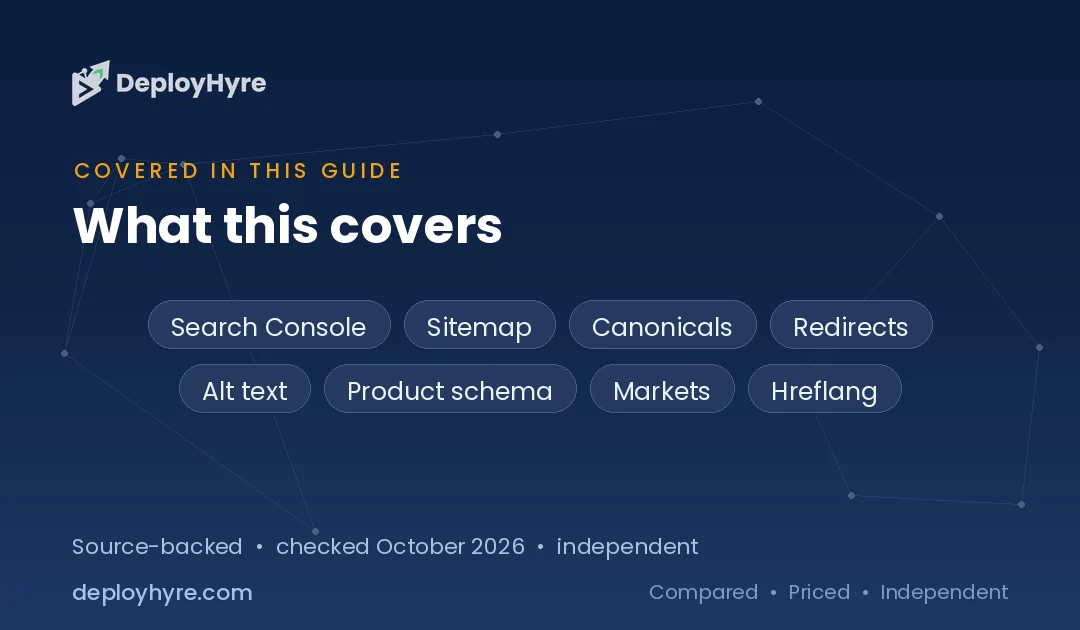
This Shopify SEO checklist turns the work into 12 clear steps. Each step says what to do, why it matters, and how to check it. We based it on Shopify Help Center pages and Google Search Central documentation. Where a setting can change by theme or app, we tell you to verify the live page.
Still setting up your store? Start with our Shopify guide for beginners, then come back here before launch. If you are still picking a platform, our ecommerce platform comparison shows how Shopify stacks up against seven rivals.
Shopify SEO Checklist at a Glance
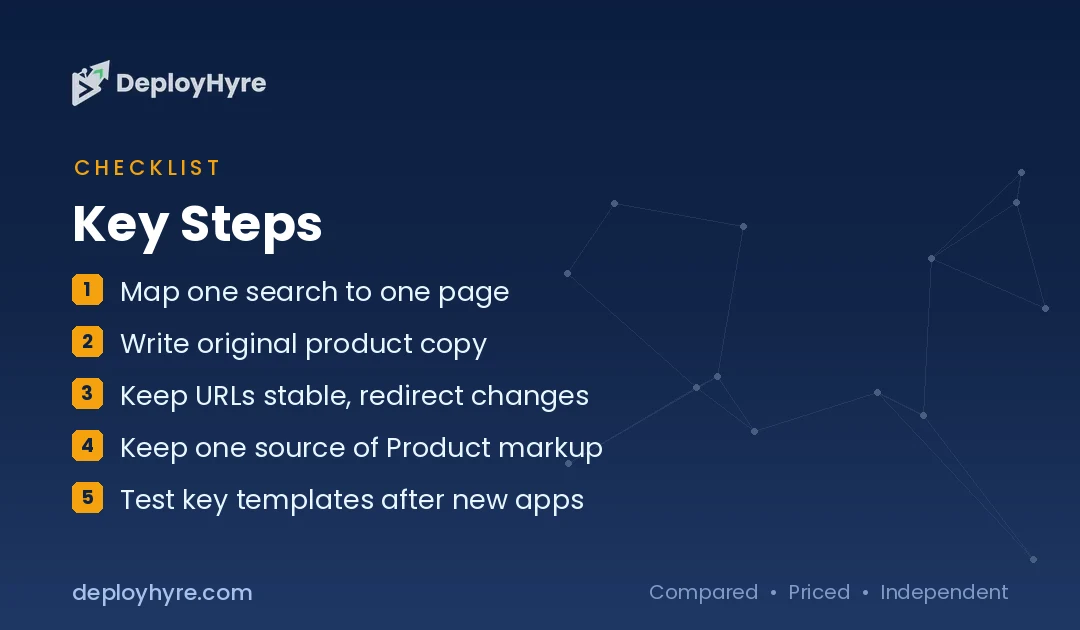
The 12 steps fall into three groups. Steps 1 to 4 cover planning and content for products and collections. Steps 5 to 7 cover titles, images, and URLs. Steps 8 to 12 cover technical checks such as sitemaps, canonicals, structured data, international setup, and speed. Work through them in order on a new store.
| Step | Area | What to do | Priority |
|---|---|---|---|
| 1. Map search intent | Planning | Give each key search one best-fit page | High |
| 2. Keep a clear hierarchy | Planning | Homepage, then collections, then products | High |
| 3. Write original product content | Product | Specs, sizing, shipping, returns, unique copy | High |
| 4. Make collections useful | Collection | Short intro, clear scope, links to guides | High |
| 5. Write unique titles and meta | On-page | A distinct title and description per key page | High |
| 6. Name and describe images | On-page | Descriptive file names and useful alt text | Medium |
| 7. Keep URLs stable | Technical | Readable handles and redirects after any change | High |
| 8. Submit the sitemap | Technical | Submit sitemap.xml and inspect key pages | High |
| 9. Check canonicals and variants | Technical | Confirm the preferred URL on the live page | Medium |
| 10. Validate structured data | Technical | Keep one clean source of Product markup | Medium |
| 11. Review international SEO | Technical | Check Markets domains, hreflang, and translations | Medium if selling abroad |
| 12. Monitor speed and apps | Technical | Test key templates after app or theme changes | Medium |
What Does Shopify Handle for SEO Automatically?
Shopify automatically adds canonical tags, generates sitemap.xml and robots.txt files, and turns on SSL. Its themes also put your store name in title tags and include product schema markup. You still control the content, titles, meta descriptions, URL handles, and image alt text. Menus, internal links, and app code are yours too.
Those defaults come straight from Shopify’s SEO overview. The same page lists the fields you can edit yourself. You can change the title tag, meta description, and URL for products, collections, pages, and blog posts.
This split matters. A store can have perfect defaults and still rank poorly. Thin product copy, duplicate collections, and broken links are not things a platform can fix for you.
Shopify also gives you less control over URL structure than some rivals. Our Shopify vs BigCommerce breakdown and our WooCommerce vs Shopify review both cover that trade-off.
One more default to know: search engines cannot see a store in private mode. Shopify’s SEO FAQ page also says trial stores are not indexed. Most of this checklist pays off only after you launch on a paid plan.
How Should You Plan Keywords and Store Structure?
Plan keywords by giving each important search one best-fit page. Broad category searches belong on collection pages. Searches for one item belong on product pages. Questions that need explanation belong in blog guides. Then arrange pages from homepage to collections to products. Link related pages with anchor text that names the destination.
Step 1: Map one search intent to each important page
Before you edit any title, decide what each page is for. A collection page should match a broad search like “women’s running shoes”. A product page should help someone judge one item and its variants. A guide should answer a question that needs explanation.
Avoid two pages chasing the same search. In Google Search Console, check whether several URLs get impressions for one query. If they do, strengthen the best page. Then merge or retarget the weaker one.
Step 2: Keep a clear store hierarchy
Shopify recommends a simple order. The homepage sits at the top, collections sit below it, and products sit at the lowest level. Its guide to optimizing your site structure also asks for clear menus and descriptive link text.
Make key collections reachable from the main menu in one or two clicks. Link products to related products and to their collection where it helps shoppers. Use link text that names the destination, such as “trail running shoes”. Avoid vague text like “click here”. Google’s guide to ecommerce URL structure gives the same advice on link text.
How Do You Optimize Shopify Product and Collection Pages?
Optimize product pages with original copy that answers buyer questions about specs, sizing, materials, shipping, and returns. Optimize collection pages with a short intro, a clear scope, and links to related guides. Write for shoppers first. Use the words customers actually search for, but never stuff keywords into titles or paragraphs.
Step 3: Write original product page content
A strong product page answers every question a shopper has before buying. Include accurate specifications, materials, sizing, and compatibility where they apply. Add delivery times, care instructions, warranty terms, and return details. Explain benefits and limits in plain language.
Do not copy the manufacturer’s description across your catalog. Many other stores may use the exact same text. Show only genuine customer reviews, and follow the review rules of any platform you use.
Step 4: Make collection pages useful, not just a grid
Give each important collection a clear topic and a short intro that helps shoppers choose. Keep the product mix tight. If two collections hold nearly the same products for the same search, merge them into one.
Watch filters and sort options too. Filtered and sorted views can create many extra URLs. Do not assume every filtered URL should be indexed. Inspect the live URLs and their canonical tags before you change anything. Google also suggests a noindex tag on category pages that have no products.
Collections work well alongside content. A buying guide can answer research questions, then link to the matching collection. Make sure each guide solves a real problem and is not just a page of links.
How Do You Write Shopify SEO Titles and Image Alt Text?
Shopify suggests titles under 60 characters and meta descriptions under 160 characters. Make both unique for each key page. Lead with what the page sells and one clear difference. For images, use descriptive file names before you upload. Then add short alt text that describes what the image actually shows.
Step 5: Write unique titles and meta descriptions
Shopify’s help article on editing SEO titles and meta descriptions shows where these fields live. It also favors specific titles over vague ones. Its example uses “Star Wars Button Down Shirts” rather than just “Star Wars”.
Avoid one template for every page with only a product number changed. Google may rewrite titles or snippets anyway. Treat your metadata as a clear label, not a promise of how results will look.
Step 6: Add descriptive image names and alt text
Rename image files before you upload them. A name like blue-wool-blanket-queen.jpg tells search engines more than IMG_4821.jpg. Next, write alt text that describes the image for someone who cannot see it. Shopify’s own example is “Men’s waterproof hiking boots”.
Skip keyword lists in alt text. Purely decorative images do not need detailed alt text. Compress large images and size them for the template, since heavy files slow down mobile pages.
Technical Shopify SEO: URLs, Sitemaps, and Canonicals
Technical Shopify SEO starts with stable URLs. Keep product and collection handles readable, and add a 301 redirect whenever one changes. Submit your auto-generated sitemap to Google Search Console. Then check that canonical tags on product, variant, and collection-path URLs point to the version you want indexed. Always verify the live page.
Step 7: Keep URLs stable and redirect every change
Keep handles short and readable, like /collections/organic-skincare. Before you rename a page, check whether it already earns visits or links. If the URL must change, add a redirect from the old address.
Shopify’s guide to creating and managing URL redirects covers the details. You find redirects under Content, then Menus, in your admin. Shopify only redirects URLs that return a 404 error. Most plans allow up to 100,000 redirects, and Plus allows up to 20 million. After any change, update internal links and watch for new 404 errors.
Step 8: Submit your sitemap and check indexing
Every Shopify store generates a sitemap.xml file automatically. Shopify’s guide to finding and submitting your sitemap says it lists products, product images, pages, collections, and blog posts. The file updates itself when you add new content.
To submit it, first verify your domain in Google Search Console. Open Sitemaps under Indexing and enter sitemap.xml. If you use international domains, submit a sitemap for each one. Your store must be public for crawling to work.
A sitemap helps discovery, but it does not guarantee indexing. Use URL Inspection on a few key pages instead of resubmitting the same file again and again.
Step 9: Check canonical tags and product variants
Shopify product URLs can appear in more than one form. A variant may add a ?variant= parameter to the URL. A product may also load inside a collection path. In standard setups, the canonical tag points these back to the main /products/ URL.
Custom themes and apps can change that output, so check it yourself. View the page source on a product, a variant, and a collection-path URL. Confirm each canonical tag points where you expect. Google’s explainer on how URL canonicalization works shows how it picks a preferred URL. Its ecommerce URL guide also asks for consistent URLs across internal links, sitemaps, and canonical tags.
How Do You Handle Structured Data and International SEO?
Check whether your theme already outputs Product markup before you add an SEO app or custom code. Two sources of the same markup can conflict. If you sell abroad with Shopify Markets, let it generate hreflang tags and market sitemaps for you. Avoid adding manual hreflang or canonical tags on top of those defaults.
Step 10: Validate product structured data
Structured data helps Google understand details like price, availability, and reviews. Google’s introduction to Product structured data explains two types. Product snippets suit pages with product information. Merchant listings suit pages where shoppers can buy.
Shopify says its themes include product markup. Many SEO and review apps add their own as well. Run a key product page through Google’s Rich Results Test and look for duplicate Product items. Keep one clean source of markup.
Selling sizes or colors? Google’s guide to product variant structured data uses a ProductGroup with properties such as hasVariant and variesBy. Check whether your theme supports it before you add custom code.
Step 11: Review international SEO with Shopify Markets
Shopify’s page on international SEO for Markets explains the defaults. You can serve each market from a subfolder, a subdomain, or a separate country domain. Shopify recommends subfolders for most stores because they share your main domain’s authority.
Shopify adds hreflang tags automatically when a market has its own domain, subdomain, or subfolder. Each market version gets a self-referencing canonical tag. Market URLs are added to the sitemap. Known search engine crawlers are also excluded from automatic location redirects.
If a theme or app adds its own hreflang tags, turn off Shopify’s automatic tags in Online Store preferences. Running both creates duplicates. Shopify also notes that adapting content for each market can do better than a word-for-word translation.
How Do You Keep a Shopify Store Fast as You Add Apps?
Keep a Shopify store fast by testing key templates, not just the homepage. Check a top product page and a top collection page after every new app, script, or theme change. Remove apps you no longer use and look for leftover code. Track real results in Search Console rather than chasing one speed score.
Step 12: Monitor speed, apps, and search results
Apps, tracking scripts, large videos, and theme code all add weight to a page. Measure a product page and a collection page before and after each change. If a page slows down, look at the newest script first.
Use Search Console and your store analytics together. Look for pages with many impressions but few clicks. Look for searches that land on the wrong page. Check for indexing problems after theme updates. Fix the issue that affects the most revenue first.
Choosing new tools? Our list of AI-powered Shopify apps groups each app by the job it does, so you can install fewer.
Common Shopify SEO mistakes to avoid
- Copying supplier descriptions across a large catalog.
- Creating several collections or pages for the same search.
- Renaming URLs without redirects and internal link updates.
- Running several SEO apps that add overlapping metadata or markup.
- Assuming a submitted sitemap means every page is indexed.
- Editing robots.txt or canonical tags before you find the real problem.
- Chasing a keyword while product details and mobile speed stay poor.
The Bottom Line
Shopify handles part of the technical base, including sitemaps, canonical tags, and SSL. The rest is your job: clear structure, original product content, stable URLs, and clean structured data. Work through this checklist before launch and verify the live pages. Then use Search Console data to decide what to improve each month.
How we built this checklist
We reviewed Shopify Help Center articles on SEO, site structure, metadata, sitemaps, redirects, and Markets. We compared them with Google Search Central guidance on ecommerce URLs, canonicalization, and Product structured data. We did not audit a live store for this article. Each technical claim links to its official source, checked in October 2026.
New to the platform? Our Shopify guide covers plans, costs, setup, and launch testing step by step.
Frequently Asked Questions
Does Shopify do SEO automatically?
Partly. Shopify automatically adds canonical tags, generates a sitemap and robots.txt file, and turns on SSL. Its themes include product schema markup. You still need to write useful content, organize collections, and set titles and meta descriptions. You also manage redirects and app output.
Does Shopify automatically create a sitemap?
Yes. Every Shopify store generates a sitemap.xml file at the root of its domain. It lists products, collections, pages, and blog posts, and it updates automatically. Submit it in Google Search Console. Being in the sitemap does not guarantee a page will be indexed.
How do I optimize a Shopify product page for Google?
Use a clear product title, original and complete copy, and accurate variant details. Add useful images with alt text, shipping and return details, and links to related products. Confirm the page is indexable, its canonical tag is correct, and its Product structured data has no duplicates.
Do I need a Shopify SEO app?
Not always. Start by checking what Shopify and your theme already provide. Add an SEO app only when it solves a specific need. Before you install one, confirm it will not duplicate titles, canonical tags, or structured data from your theme.
How long does Shopify SEO take to work?
There is no fixed timeline. Search engines need time to crawl and judge new pages, and Google does not guarantee crawl speed. Results depend on competition, content quality, and technical health. Use Search Console to track indexing and search queries over time.
Related Articles


David Austin is a technology writer and software analyst at DeployHyre, where he covers AI tools, SaaS platforms, cloud hosting, and business automation. He focuses on hands-on comparisons of pricing, features, and real-world performance so teams can pick the right software with confidence.